Configuring DXVK in Wine for Linux Gaming Performance
Optimizing frame rates by translating DirectX calls to Vulkan, with specific setup for legacy Kepler GPUs.

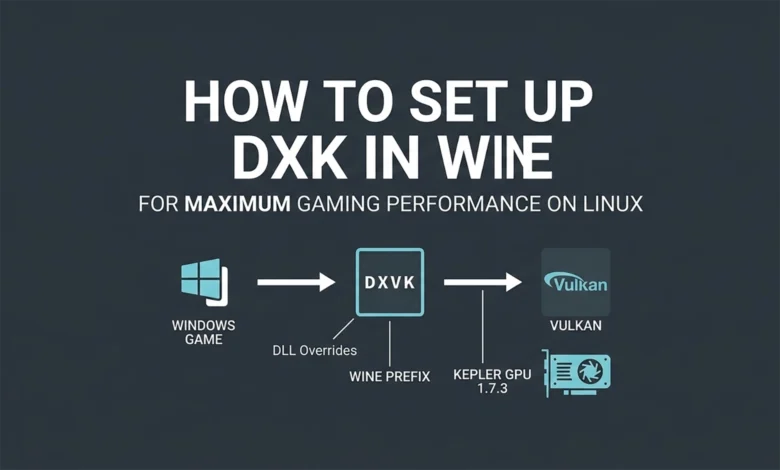
In my previous tutorial on installing Wine, I mentioned that setting up DXVK within Wine prefixes is essential for maximizing gaming performance on Linux. Now, it’s time to make that happen.
Basically, DXVK is a translation layer that converts Direct3D 9/10/11 API calls (Windows graphics APIs) into Vulkan, a cross-platform graphics API. This translation is crucial because Linux does not natively support DirectX. Most Windows games rely on DirectX for rendering, so on Linux we need to translate those DirectX calls into something that Linux understands. That’s where DXVK comes in.
So in this guide, I’m going to show you how to properly configure DXVK for Wine-based Windows gaming on Linux. Sometimes, different games and GPUs require different DXVK versions, so there’s no universal install-once-and-work-everywhere solution. Besides, if you’re using legacy Kepler GPUs like the GT 750M, this guide will be particularly valuable.
That’s enough introduction. Let’s get DXVK configured.
Checking Your Current DXVK Version
If you previously installed DXVK into a Wine prefix using Winetricks during your initial Wine setup, you might have run commands like:
winetricks dxvk
(for the default ~/.wine prefix)
Or:
WINEPREFIX=$HOME/.wine-witcher3 winetricks dxvk
(for a specific prefix like .wine-witcher3)
then to verify whether DXVK is installed in a particular prefix, check the DLL files. DXVK embeds version strings in its DLLs, which we can extract:
strings "$WINEPREFIX/drive_c/windows/system32/d3d9.dll" | grep -i dxvk
strings "$WINEPREFIX/drive_c/windows/system32/dxgi.dll" | grep -i dxvk
⚠️ Important note about $WINEPREFIX
Throughout this guide, I use $WINEPREFIX as shorthand instead of writing out full absolute paths. This is an environment variable that you must declare before using it. If your shell hasn’t had the variable exported yet, simply specify the prefix directly like ~/.wine or ~/.wine-witcher3. For example:
export WINEPREFIX="$HOME/.wine"
# OR:
export WINEPREFIX=~/.wine-witcher3
The specific prefix depends on which environment you’re working with.
Verify you’re targeting the correct prefix:
echo "$WINEPREFIX"
Then run the strings commands above to check for DXVK.
You can also specify the full path directly (/path/to/prefix) if you prefer:
strings "/home/kevin/.wine/drive_c/windows/system32/d3d9.dll" | grep -i dxvk
strings "/home/kevin/.wine/drive_c/windows/system32/dxgi.dll" | grep -i dxvk
That said, environment variables keep commands shorter when you’re focusing on a specific prefix. The other reason I’m using $WINEPREFIX here is to provide generic syntax examples that work regardless of your actual prefix path. Just substitute your actual /path/to/prefix wherever you see $WINEPREFIX.
Check for version numbers in the DLL files:
strings "$WINEPREFIX/drive_c/windows/system32/dxgi.dll" | grep "v[0-9]*\.[0-9]*"
strings "$WINEPREFIX/drive_c/windows/system32/d3d9.dll" | grep "v[0-9]*\.[0-9]*"
strings "$WINEPREFIX/drive_c/windows/system32/d3d11.dll" | grep "v[0-9]*\.[0-9]*"
Repeat these commands for other prefixes like ~/.wine32, .wine-gtasa, etc. to verify DXVK installation and identify which version is present.
If the output shows clear DXVK version information, your DXVK is installed.
But wait, hold on — “installed” doesn’t automatically mean it’ll work correctly. Let’s not rush ahead!
Verifying Installed Winetricks Components
Method 1: Terminal Command
While this method also reveals whether DXVK exists in a prefix, it provides much more comprehensive information about your Wine environment.
For the default $HOME/.wine prefix:
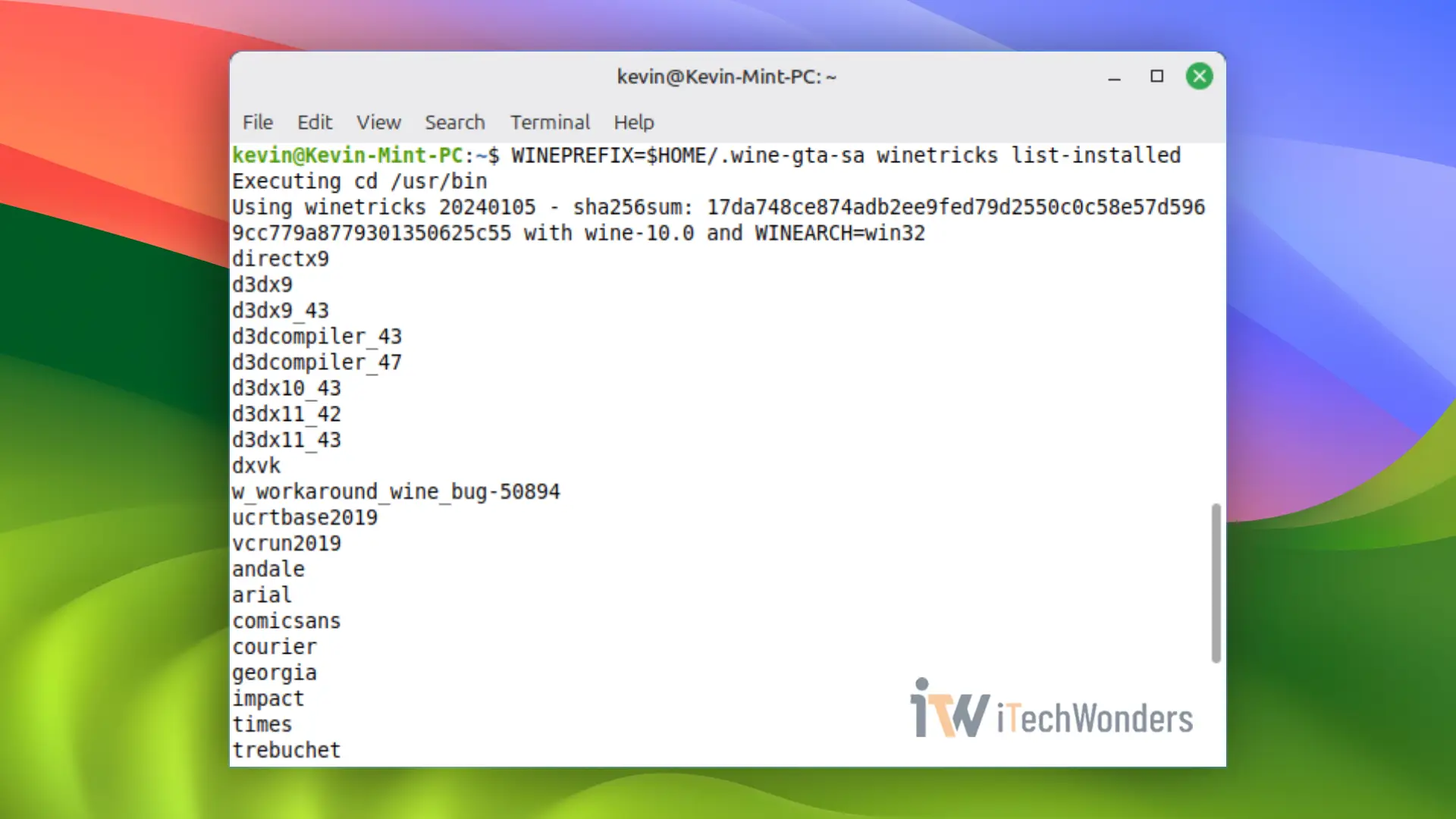
winetricks list-installed
For specific prefixes:
WINEPREFIX=$HOME/.wine-witcher3 winetricks list-installed
WINEPREFIX=$HOME/.wine-gtasa winetricks list-installed
WINEPREFIX=$HOME/.wine32 winetricks list-installed
Method 2: Check the Log File
Winetricks maintains installation logs that can track which components have been installed. Search for these logs within your prefix:
export WINEPREFIX=$HOME/.wine-witcher3
find "$WINEPREFIX" -maxdepth 3 -type f -iname "*winetricks*" -print 2>/dev/null
Example output showing the log file location:
/home/kevin/.wine-witcher3/winetricks.log
Open this .log file with a text editor to see the complete list of installed Winetricks components for that prefix.
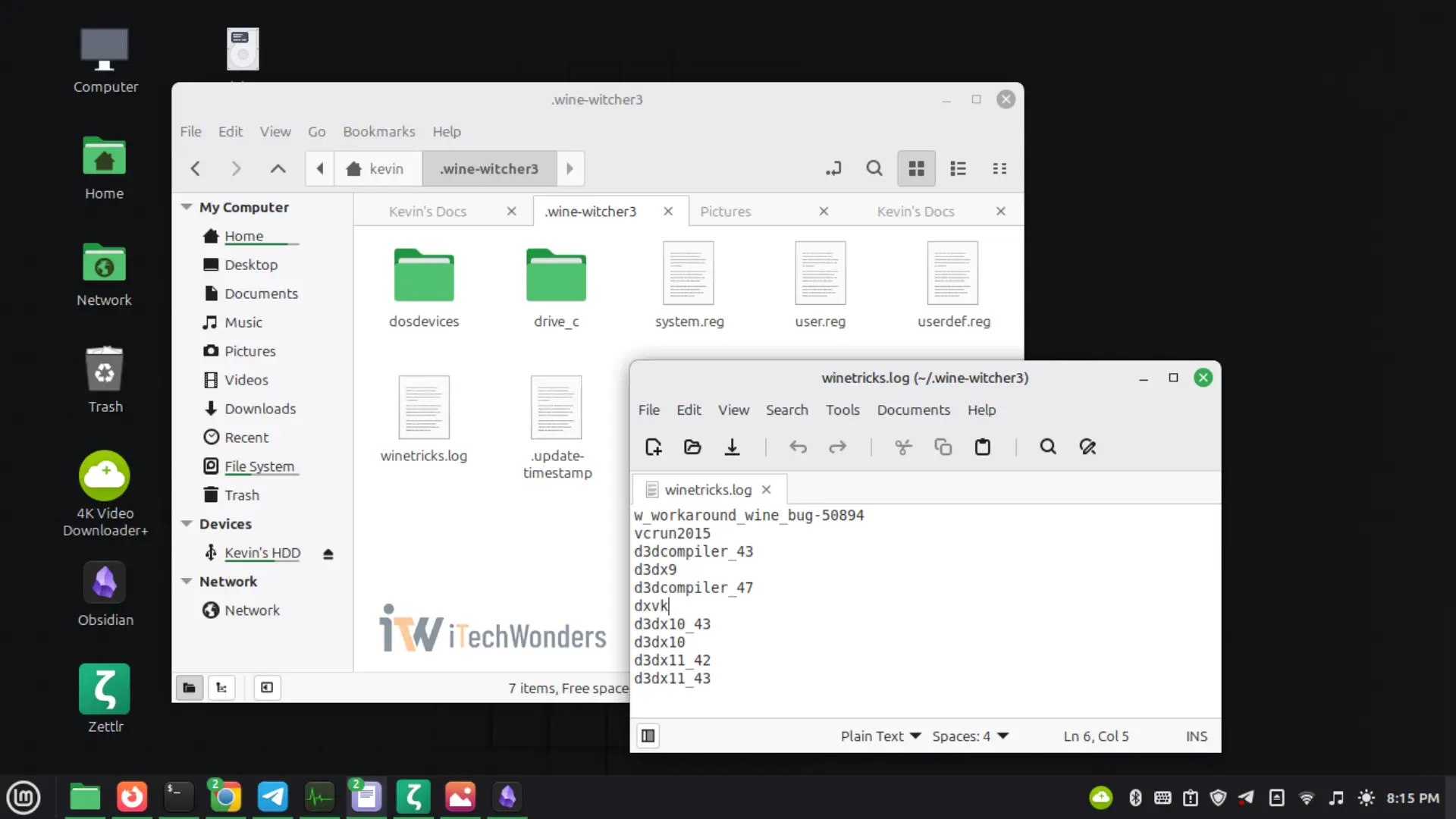
The example above shows components required for “The Witcher 3: Wild Hunt” to run properly on Linux. DXVK alone isn’t sufficient enough for games with complex library dependencies.
Remember, you can always install additional components through Winetricks by running:
WINEPREFIX=/path/to/prefix winetricks
e.g.
WINEPREFIX=$HOME/.wine-witcher3 winetricks
This opens a graphical interface where you can select “Which package(s) would you like to install?” and choose required components with your mouse. That said, command-line installation offers advantages that GUI tools can’t always match, especially for automation and precise control.
Running Games with DXVK
After completing the setup steps above, test whether DXVK actually works with your games.
The basic syntax for launching games with Wine and DXVK:
WINEPREFIX=/path/to/prefix DXVK_HUD=1 wine appname
For example:
WINEPREFIX=$HOME/.wine-witcher3 DXVK_HUD=1 wine witcher3.exe
WINEPREFIX=$HOME/.wine-gtasa DXVK_HUD=1 wine gta-sa.exe
The DXVK_HUD=1 parameter displays GPU information, driver details, FPS, and Vulkan version in the top-left corner of your screen during gameplay. You can use DXVK_HUD=full to enable all available HUD elements. See the official DXVK documentation for complete HUD configuration options.
If you don’t want the HUD overlay, simply omit it:
WINEPREFIX=/path/to/prefix wine appname
DXVK will still load automatically if it’s properly installed in the prefix. The DXVK_HUD= variable only controls the visual overlay.
Note that you need to navigate to the directory containing your game executable with cd before launching!
Installing Different DXVK Versions Manually
As mentioned earlier, the blanket approach of running winetricks dxvk doesn’t guarantee success for every game or GPU combination. Different games and hardware sometimes require specific DXVK versions.
Download DXVK releases from the official GitHub repository:
https://github.com/doitsujin/dxvk/releases
After downloading and extracting the archive, copy the appropriate 32-bit and/or 64-bit DLL files to your Wine prefix directories. For 64-bit prefixes:
- Copy 64-bit DLLs to
$WINEPREFIX/drive_c/windows/system32 - Copy 32-bit DLLs to
$WINEPREFIX/drive_c/windows/syswow64
Then run winecfg for that prefix:
WINEPREFIX="$WINEPREFIX" winecfg
# OR:
WINEPREFIX=/path/to/prefix winecfg
Critical distinction for 32-bit prefixes: For pure 32-bit Wine prefixes (not the default 64-bit prefix), place the 32-bit DLL files in the system32 directory, not “syswow64”. The syswow64 directory only exists in 64-bit Windows environments.
To visualize this for 32-bit prefixes:
export WINEPREFIX=/path/to/prefix
cp x32/*.dll $WINEPREFIX/drive_c/windows/system32
winecfg
DXVK Configuration for Kepler GPUs
As already discussed in detail in my GT 750M survival guide, Kepler-generation GPUs require DXVK version 1.7.x for optimal compatibility. DXVK 2.0 and newer versions require Vulkan 1.3 support, which Kepler GPUs don’t provide. The recommended version is 1.7.3, which is available on GitHub.
You can click here for the official direct download link.
This version includes a convenient setup_dxvk.sh installation script, eliminating manual DLL copying.
Download and extract the archive, then open a terminal in the directory containing the .sh file (or cd to that directory, like cd "/home/kevin/Downloads/dxvk-1.7.3"). Install to your desired prefix:
WINEPREFIX="$WINEPREFIX" ./setup_dxvk.sh install
# e.g.
WINEPREFIX=/home/kevin/.wine-witcher3 ./setup_dxvk.sh install
Repeat for other prefixes as needed.
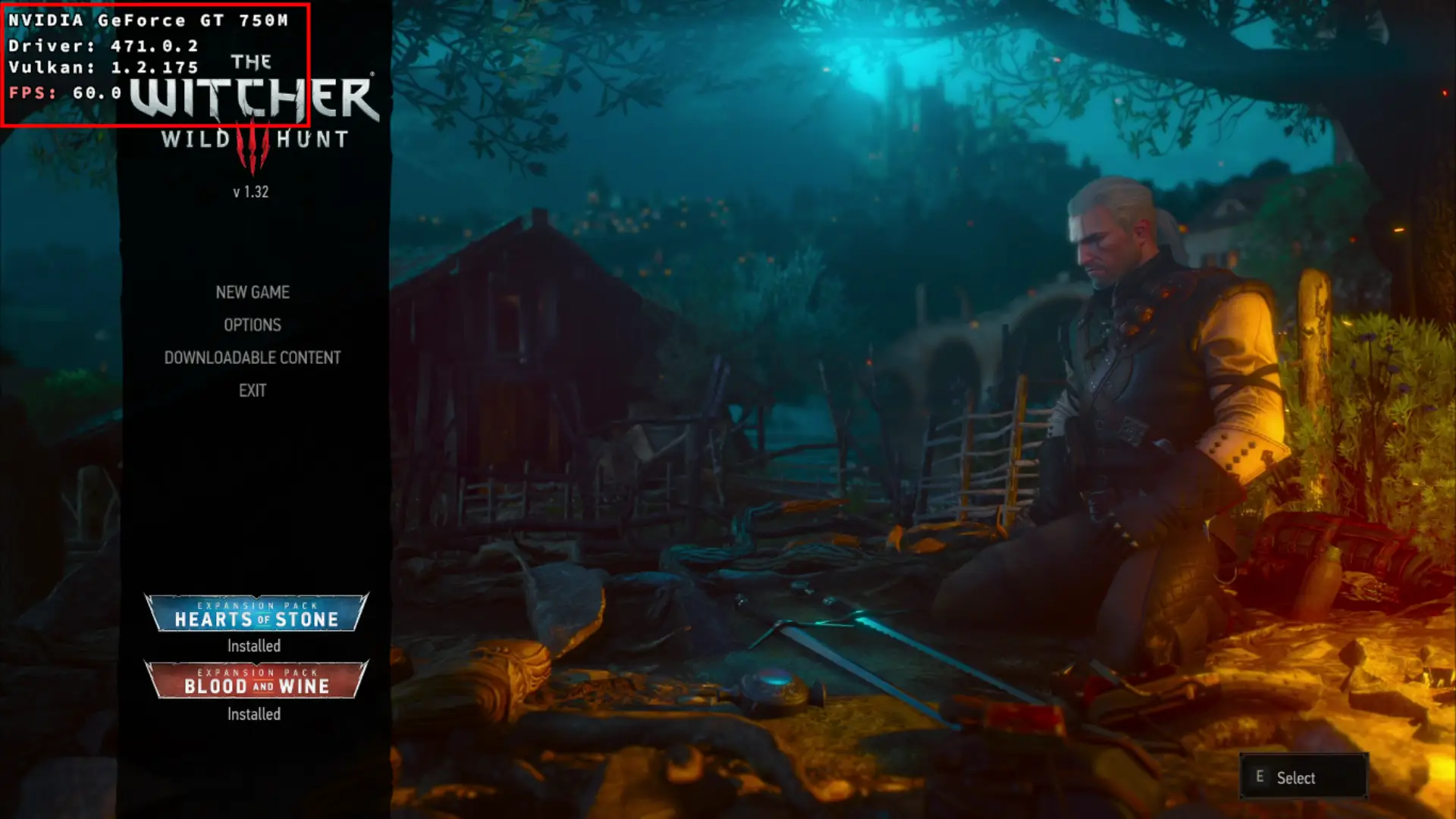
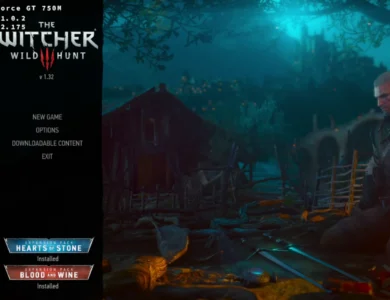
This screenshot shows The Witcher 3: Wild Hunt (v1.32) running successfully on a Kepler NVIDIA GeForce GT 750M (2GB) using DXVK 1.7.3 with Vulkan 1.2.175. The HUD shows 60 FPS, confirming that Vulkan is actively engaged. Wine’s default OpenGL translation can’t achieve this performance. Actual gameplay FPS typically ranges from 25-43 depending on the in-game area and scene complexity. If you have a more powerful GPU (which means newer Vulkan), you’ll see significantly higher frame rates. The 60 FPS shown here isn’t a hard limit for this game on Linux.
Additional Important Notes
Removing DXVK from a Prefix
To remove DXVK from a prefix, delete the DLLs and DLL overrides, then run wineboot -u to restore Wine’s original DLL files:
WINEPREFIX=~/.wine wineboot -u
This command will reset the prefix to its default state without DXVK.
Tools with Automatic DXVK Management
Gaming platforms like Steam Play (Proton), Lutris, Bottles, and Heroic Launcher automatically handle DXVK setup on their own when you enable their compatibility layers. You don’t need to manually configure DXVK when using these tools.
DLL Dependencies for Different Direct3D Versions
DXVK requires specific DLLs depending on which Direct3D API version your game uses:
- Direct3D 8: Requires
d3d8.dllandd3d9.dll - Direct3D 9: Requires
d3d9.dll - Direct3D 10: Requires
d3d10core.dll,d3d11.dll, anddxgi.dll - Direct3D 11: Requires
d3d11.dllanddxgi.dll
Most modern games use Direct3D 11, while older titles typically use Direct3D 9.
Warning About Online Multiplayer
Using DXVK (or any Direct3D library manipulation) in online multiplayer games may be flagged as cheating by anti-cheat systems. This can result in permanent account bans. This also applies to single-player games with embedded multiplayer features or dedicated multiplayer modes.
Use DXVK in online games at your own risk. Some game publishers explicitly prohibit any modification of graphics libraries, regardless of your intent. You should always check a game’s terms of service before using DXVK for online play.
Wrapping Up
DXVK represents one of the most significant advances in Linux gaming compatibility. By translating DirectX calls to Vulkan in real-time, it enables Windows games to run on Linux with performance that often matches or exceeds native Windows in many scenarios. The translation layer is remarkably efficient, especially considering the complexity of what it’s doing behind the scenes.
For users with modern GPUs that fully support Vulkan 1.3, the latest DXVK versions provide excellent performance and compatibility. However, owners of legacy hardware like Kepler GPUs shouldn’t feel left behind. DXVK 1.7.3 remains a powerful tool that breathes new life into older graphics cards, enabling them to run games that would otherwise be unplayable through Wine’s default OpenGL translation.
The key to DXVK success is understanding that different hardware and games may need different configurations. Don’t hesitate to experiment with versions if performance isn’t optimal. The ability to maintain multiple Wine prefixes with different DXVK versions is one of Wine’s greatest strengths. Combined with proper GPU drivers, correctly configured Wine prefixes, and appropriate Winetricks components, DXVK completes the Linux gaming puzzle. When everything works together, the results can be genuinely impressive.
Now you have the knowledge to configure DXVK for optimal gaming performance on Linux.
Enjoyed the article?