Older NVIDIA GPUs like the NVIDIA GeForce GT 750M were once popular pick-ups for budget gaming laptops, and many of us still use them on Linux today. But as Linux distributions such as Ubuntu 24.04 LTS and Linux Mint 22.x / 23.x have evolved, support for this hardware has become increasingly tricky, especially if your workflow involves gaming through Wine/Proton, Vulkan, or DXVK.
Let’s break this all down clearly!
What Is Kepler — and Why It Still Matters in 2026
The GeForce GT 750M is built on NVIDIA’s Kepler architecture (GK107), a GPU generation that powered most legendary GeForce 600/700 series cards. From a hardware standpoint, Kepler isn’t completely obsolete: these GPUs can handle OpenGL 4.6 and support Vulkan 1.2 with the right driver. On paper, that should be enough for a decent Linux gaming experience and/or modern applications.
If you own a GT 750M, you’re part of a large family of “Kepler survivors” that share the same GK107/GK104 architecture. If you’re rocking any of the GPUs listed below, this guide applies to you as well:
| GPU Generation | Popular Models (GK107/GK104) | Support Level (2026) |
| Mobile | GT 640M, GT 650M, GT 750M, GTX 765M | Legacy (Driver 470.xxx) |
| Desktop | GTX 660, 670, 680 | Legacy / NVK (Experimental) |
| Desktop | GTX 760, 770, 780 | Legacy / NVK (Experimental) |
In reality, the problem isn’t the silicon — it’s the “software wall.”
The reason the proprietary driver is so vital comes down to one simple word: performance. Yes, open-source drivers do exist, but for the GT 750M, only NVIDIA’s official 470 driver branch lets the GPU “re-clock” properly and actually run at the speeds it was designed for. Without it, the card often gets stuck in a low-power idle state, and what should be a perfectly playable gaming session quickly turns into a choppy, frustrating slideshow.
NVIDIA has officially ended Linux driver development for Kepler GPUs. The 470.xxx driver branch is the last proprietary driver series that supports Kepler, and it has been declared end-of-life. There are no newer proprietary drivers (e.g., 510, 525, 535, 550, etc.) that support Kepler-based GPUs, and NVIDIA is no longer improving Vulkan, OpenGL, or kernel compatibility for this architecture.
That means if you’re running a GT 750M today, NVIDIA 470 is the end of the road, and everything moving forward depends on that legacy package.
The GTX 750 and 750 Ti exception
One of the most common points of confusion around Kepler-era GPUs is the GTX 750 Ti. Despite being labeled as part of the “700 series,” it isn’t actually a Kepler card at all. The GTX 750 Ti is built on first-generation Maxwell, which is exactly why it continues to receive support from newer NVIDIA driver branches long after Kepler was officially dropped.
To put simply:
- Most GeForce 600- and 700-series GPUs are Kepler, and that means they’re effectively locked to the 470 driver.
- GTX 750 and 750 Ti, on the other hand, are Maxwell, and remain compatible with modern NVIDIA drivers.
The GT 750M, unfortunately, falls squarely into the first category.
That said, there is a small glimmer of hope on the horizon. With the rise of NVK — Mesa’s new open-source Vulkan driver — Kepler users may eventually have a path forward that doesn’t rely on NVIDIA’s aging proprietary stack. For now, though, support for GK107 hardware is still very much a work in progress. We’ll come back to this later.
What this means in practice
You can still get basic hardware acceleration, OpenGL, and Vulkan 1.2 working on Linux with a Kepler GPU. However, Vulkan support is permanently capped at version 1.2 on the legacy 470 driver, with no path to Vulkan 1.3 or newer as seen on modern NVIDIA GPUs. As a result, you’re stuck on old driver tech, while the rest of the Linux graphics stack — kernels, Mesa, Wayland, Wine/Proton, DXVK — continues to move forward.
The implication is pretty clear: Kepler GPUs aren’t instantly unusable on Linux, but every new distro release makes compatibility more fragile, especially for modern games and Windows-to-Linux translation layers.
Kernel Compatibility: Big Headache with Ubuntu 24.04 / Mint 22
Modern Ubuntu (24.04 LTS) and its derivatives like Linux Mint generally ship with Hardware Enablement (HWE) kernels — the rolling series of newer kernels backported into the LTS lifecycle. In Ubuntu 24.04’s case, that means the system will progressively move into kernel 6.14+ as point releases roll out.
Here’s where the problem starts for legacy NVIDIA drivers:
NVIDIA 470 fails to build with newer HWE kernels like 6.14
The NVIDIA 470 driver branch — the last proprietary NVIDIA driver that supports Kepler GPUs like the GT 750M — includes kernel modules that are not compatible with newer HWE kernels around 6.14 and above. On current Ubuntu 24.04 point releases, attempting to build the 470 DKMS modules against a 6.14 HWE kernel will fail during compilation and prevent the driver from loading properly.
What this looks like in practice:
- The
nvidia-dkms-470package tries to compile its kernel module against the running HWE kernel but errors out, leaving the proprietary driver uninstalled or in a broken state. - Without a working proprietary driver, the system often falls back to nouveau or software rendering, which significantly reduces performance for gaming or GPU-accelerated workflows.
Workarounds people use
Because Ubuntu doesn’t plan to patch 470 to build cleanly with newer HWE kernels, the two common approaches in the community are:
- Boot or lock into an older kernel (like 6.8) that still compiles the 470 driver successfully and stick with it for the life of Ubuntu 24.04.
- Use unofficial patched packages or PPAs that attempt to fix the build for HWE kernels, though these are third-party and can be unstable or even break your display.
The Open Source Hope: Nouveau and NVK
If the proprietary NVIDIA 470 driver is such a headache to maintain on modern kernels, you might wonder: “Can I just use the built-in open-source drivers?”
Well, in 2026, the answer is a bit of a “double-edged sword”:
- Nouveau (The Classic): It will work out of the box and boot your system easily. However, for a GT 750M, Nouveau still struggles with reclocking. This means your GPU might stay stuck at its lowest power state, making even basic 3D games feel like a slideshow.
- NVK (The New Contender): This is the modern Vulkan driver for NVIDIA hardware inside the Mesa stack. While it’s making huge strides in supporting Vulkan 1.3 on older hardware, on a Kepler chip like the GT 750M, it’s still not as “plug-and-play” as the proprietary driver for gaming.
My experience
If your system lands on a 6.14 HWE kernel (the default on newer 24.04 point releases) and you’re relying on the NVIDIA 470 driver for your GT 750M, there’s a high chance the driver will fail to install or load properly unless you deliberately downgrade to — or hold — an older kernel that still works with 470, such as 6.8.0-060800-generic.
I go through this entire setup in a separate, step-by-step guide, based strictly on my own experience getting the GT 750M running reliably on Linux Mint 22.2 (and Ubuntu 24.04 LTS), covering kernel downgrades, driver locking, and validating the correct NVIDIA PRIME configuration on hybrid-graphics laptops. You can do just the same with Mint 22.3 and/or later point releases as well.
Verdict for 2026: For daily desktop use and Wayland stability, the open-source stack is becoming a viable fallback. But for gaming, sticking to the Proprietary 470 + Kernel 6.8 combo (as discussed below) remains the only way to get 100% performance out of the silicon.
Vulkan, DXVK and Wine/Proton Compatibility
When attempting to run Windows games on Linux, most of us lean on a stack of compatibility layers:
- Wine — the compatibility layer that lets Windows applications run on Linux
- DXVK — translates Direct3D calls (DirectX 9/10/11) into Vulkan
- Proton — Valve’s tailored/optimized Wine build with built-in DXVK for Steam gaming
And since you’re on an older NVIDIA Kepler GPU like the GT 750M, things get noticeably more complicated here, mostly because the software ecosystem has moved past the hardware’s capabilities.
DXVK’s Vulkan Requirements Have Moved On
Yes, DXVK itself continues to evolve. Modern releases — including all of the 2.x branch — now require a Vulkan driver with full Vulkan 1.3 support in order to run correctly. This isn’t just about performance; it’s about required Vulkan features and extensions that the translation layer depends on at runtime.
Unfortunately:
- Kepler GPUs on the last NVIDIA 470 driver only expose Vulkan 1.2, and they never get Vulkan 1.3 because NVIDIA dropped driver support after 470.
- That means recent DXVK builds (2.7+) won’t run on this hardware, since they expect features and extensions that simply aren’t available.
In short: the default DXVK that Proton and Wine ships today assumes newer Vulkan drivers than what Kepler is capable of.
What Gamers Using Old GPUs Actually Do
Realistically, modern DXVK releases (2.x) have moved on to requiring Vulkan 1.3-capable drivers — something Kepler GPUs on the NVIDIA 470 series simply can’t provide. As a result, if you stick with the default DXVK bundled in newer Proton or Wine setups, it often won’t initialize on hardware limited to Vulkan 1.2.
To work around that, many people with older GPUs downgrade their compatibility stack rather than expecting bleeding-edge builds to run — but to be honest, I’m not sure there’s a single “official” community consensus on the best version for everyone.
From my own experience, though, the most compatible version I’ve found for this hardware is DXVK 1.7.3 (or similar legacy branches). These older builds target the Vulkan 1.1–1.2 feature set that the 470 driver actually supports, and crucially they come with the setup_dxvk.sh script, which lets you install that specific DXVK version into a Wine prefix — making it familiar and relatively easy to use on older setups.
This doesn’t magically make your GPU modern, but it essentially lets Wine or Proton fall back to a translation layer whose expectations actually match what your GPU’s Vulkan support can deliver.
TL;DR — What This Really Means for Kepler Gaming
To keep it simple:
- Modern DXVK ≈ Vulkan 1.3 minimum → Not possible on Kepler + 470.
- Legacy DXVK (1.10.x / 1.7.x / older) works best because it targets Vulkan 1.1–1.2 feature sets.
- You’ll likely need to manually manage DXVK versions in your Wine/Proton setup (e.g., via
setup_dxvk.shor custom Proton builds) to get the best compatibility on a GT 750M.
A Quick Note on Proton and Steam Play
If you’re planning to run Windows games via Steam on Linux with Proton’s compatibility layers, there’s one practical trick I’ve noticed works surprisingly well on older GPU setups:
Choosing Proton 7.0-6 as your default compatibility tool can let you launch a surprising number of Windows-only games — including titles like The Witcher 3, GTA V, and even Genshin Impact if you set it up through Steam properly. This works because older Proton releases bundle earlier DXVK builds that don’t require Vulkan 1.3, so they’re more likely to run on hardware capped at Vulkan 1.2.
That isn’t a silver bullet for every game, but in contrast to the latest Proton builds that bundle DXVK 2.x / Vulkan 1.3 features, Proton 7.x can be a functional bridge for older NVIDIA hardware and gives you a better chance of getting mainstream titles to launch on Linux.
For Genshin Impact specifically, community reports show that forcing Proton 7.0-6 in the game’s Compatibility settings often gets the launcher and game to start on Linux — even when newer Proton versions fail to launch it reliably.
But keep in mind:
- Genshin Impact isn’t officially supported on Linux, and its behavior can be a bit unpredictable depending on launcher updates or anti-cheat changes.
- Just because the game runs doesn’t mean it’s completely risk-free. If the publisher ever decides to crack down on unsupported platforms, account actions are always a possibility. So it’s best to test things and play on an alternate account, not your primary or high-value one.
Anyway, you didn’t misread that. It’s true that Genshin Impact — along with several other miHoYo titles — does run on Linux via Steam, even on an aging Kepler GPU like GT 750M. It’s not officially supported, and it’s definitely not plug-and-play, but with the right setup, it’s absolutely doable (with surprisingly solid performance).
Practical Steps for Ubuntu / Mint Users
If you’re set on running games or Vulkan/DXVK-based applications on a GT 750M, the key is to align your kernel, driver, and compatibility layers around NVIDIA’s legacy 470 stack. Here’s a practical roadmap that actually works.
Stick to Kernels That Still Work with NVIDIA 470
On modern Ubuntu and Linux Mint releases, kernel choice is critical.
- Stay on Linux kernel 6.8.x when running Ubuntu 24.04 or Mint 22.x / 23.x.
This is the last kernel series that still builds NVIDIA 470 cleanly via DKMS. - Newer HWE kernels (notably 6.14 and later) break 470 driver builds, leaving you without a functional proprietary driver and forcing a fallback to nouveau or software rendering.
- Avoid automatic kernel upgrades once you’re on a known-good version — especially kernels that can no longer build the NVIDIA 470 DKMS kernel modules (
nvidia-dkms-470).
At this point, kernel stability matters more than “being up to date.”
Think of it this way: Linux Kernel 6.8 is the ‘Goldilocks’ zone for Kepler users in 2026. It is modern enough to provide essential security patches and support for newer peripherals, yet just “legacy” enough to allow the NVIDIA 470 DKMS modules to compile and load without a hitch. Moving beyond this version risks breaking the fragile bridge between your hardware and the operating system.
Install the NVIDIA 470 Driver the Right Way
Since 470 is the final proprietary driver series supporting Kepler GPUs, installation needs to be clean and deliberate:
- Use the Ubuntu/Pop OS/Mint packaged
nvidia-driver-470— it’s the last proprietary driver series supporting Kepler. Of course, you can also install via Terminal. - Ensure the kernel headers match your downgrading choice (e.g., 6.8.x), or DKMS compilation will fail.
Once installed correctly, 470 will give you working OpenGL and Vulkan 1.2, which is the foundation everything else depends on.
Vulkan and Compatibility Layers (Wine / DXVK / Proton)
With the driver in place, the final piece is ensuring your compatibility stack matches what the GPU can actually support:
- Confirm Vulkan support, typically via
vulkaninfoor similar tools/commands. - Use an old DXVK version like 1.7.3 to avoid the compatibility gap with newer Vulkan requirements.
- Install DXVK into the correct Wine prefix using the provided
setup_dxvk.sh.
Running a GT 750M on modern Linux isn’t about chasing the newest software. It’s about freezing the right pieces in time — kernel, driver, and compatibility layers — so they continue to work together reliably.
Again, just don’t worry — most of what we’ve discussed here will be covered in much more detail in a follow-up post, where I’ll walk through installation and optimization for the GT 750M. Stay tuned.
Again, just don’t worry — most of what we’ve discussed here is covered in much more detail in a follow-up post, where I walk through step-by-step installation and optimization for the GT 750M, including kernel handling and driver stability.
What Works — And What Doesn’t
The table below summarizes what you can realistically expect from a Kepler GPU (GT 750M) running the NVIDIA 470 driver on modern Linux distributions.
| Feature | Kepler + 470 Driver | Notes |
|---|---|---|
| Proprietary NVIDIA acceleration | ✔ (kernel ≤ 6.8) | Works only on older kernels; 470 is EOL |
| OpenGL support | ✔ (up to 4.6) | Generally stable for desktop use and older games |
| Vulkan 1.2 support | ✔ | Sufficient for legacy DXVK and older Vulkan-based apps |
| Modern Vulkan features (1.3+) | ❌ | Hard limit of the 470 driver; no upgrade path |
| DXVK 2.x | ❌ | Requires Vulkan 1.3+, which Kepler cannot provide |
| Gaming via DXVK 1.7.x / 1.10.x | ✅ | Best compatibility match for Vulkan 1.1–1.2 hardware |
| Latest Proton releases | ❌ (mostly) | Newer Proton builds bundle DXVK 2.x and assume Vulkan 1.3 |
| Older Proton (e.g. 7.x) | ✔ | Often works well when paired with legacy DXVK |
| Native Wayland sessions | ❌ | NVIDIA 470 lacks proper GBM support; Wayland is unreliable |
| X11 / Xorg | ✔ | The most stable and recommended display stack |
A quick clarification on Wayland
While some desktops may technically launch under Wayland via XWayland, this is not true native Wayland support. On NVIDIA 470, Wayland sessions are often unstable or incomplete due to legacy driver limitations. For Kepler-era GPUs, X11 remains the only practical and reliable option, especially for gaming.
In practice, once you install nvidia-driver-470 on Ubuntu or Mint, the system almost always switches to an X11 session automatically — regardless of whether you were previously on Wayland. That’s because the legacy 470 driver doesn’t fully support the modern Wayland protocols/acceleration stack, so the display server ends up falling back to Xorg to ensure hardware acceleration actually works. Seeing “NVIDIA X Server Settings” appear in your application menu is a strong indicator that your session is running under X11 with the proprietary driver loaded.
You can also check which display server you’re currently using (Wayland or X11) by opening System Information in Linux Mint.
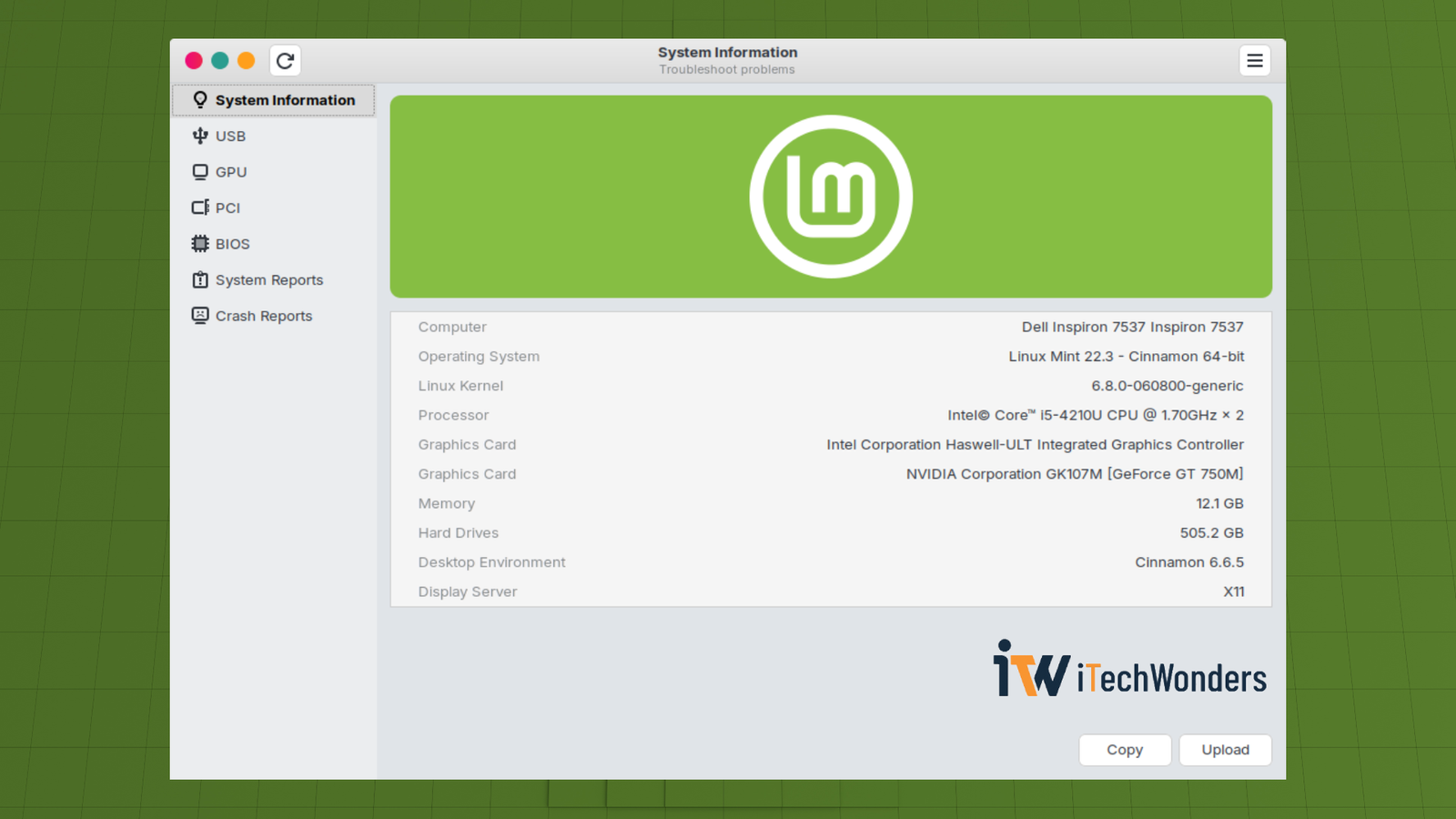
Why this behavior makes sense:
- Legacy 470 lacks the mature Wayland/GBM support newer proprietary drivers have for recent GPUs, so Wayland acceleration isn’t reliable on old Kepler hardware.
- Even if a Wayland session initializes, applications will often fall back to XWayland or fail to get hardware acceleration, which defeats the whole point of using the proprietary driver.
Wrapping Up: A Realistic Outlook
If you’re dedicated to using older NVIDIA hardware like the GT 750M with Linux gaming and compatibility layers, here’s the honest takeaway:
- Yes — it’s still possible, but only with legacy software and kernels.
- Modern distros like Ubuntu 24.04 LTS and Linux Mint have shifted too far forward for legacy drivers to be maintained on all kernels.
- Without sticking to older kernels and older DXVK drivers, you will encounter breakages.
This isn’t a Linux problem so much as it is the inevitable outcome of running hardware that has long since reached end-of-life on the vendor side. The Linux graphics stack continues to evolve, and the Linux ecosystem is adjusting accordingly, with legacy NVIDIA drivers simply no longer part of that future.
The good news? With the right setup (Ubuntu/Mint + kernel 6.8 + 470 driver + DXVK 1.7.3), you can still squeeze meaningful life out of a GT 750M for lightweight gaming, older titles, and compatibility purposes.
Just don’t expect it to age gracefully, so plan accordingly.




3 Comments