Turn Off Quick Note on Mac (Gamers, Read This)
A tiny macOS setting that's been quietly interrupting your fullscreen games.

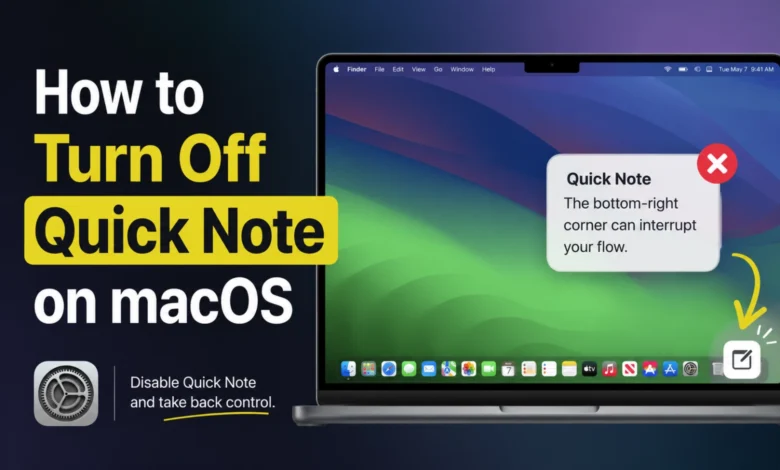
A tiny macOS feature can be genuinely useful — until your mouse hits the wrong corner at the worst possible moment.
Recently, I ran into one of those small macOS annoyances that isn’t really a bug, and isn’t necessarily a bad feature either. It just happens at exactly the wrong time. And, naturally, that makes it annoying.
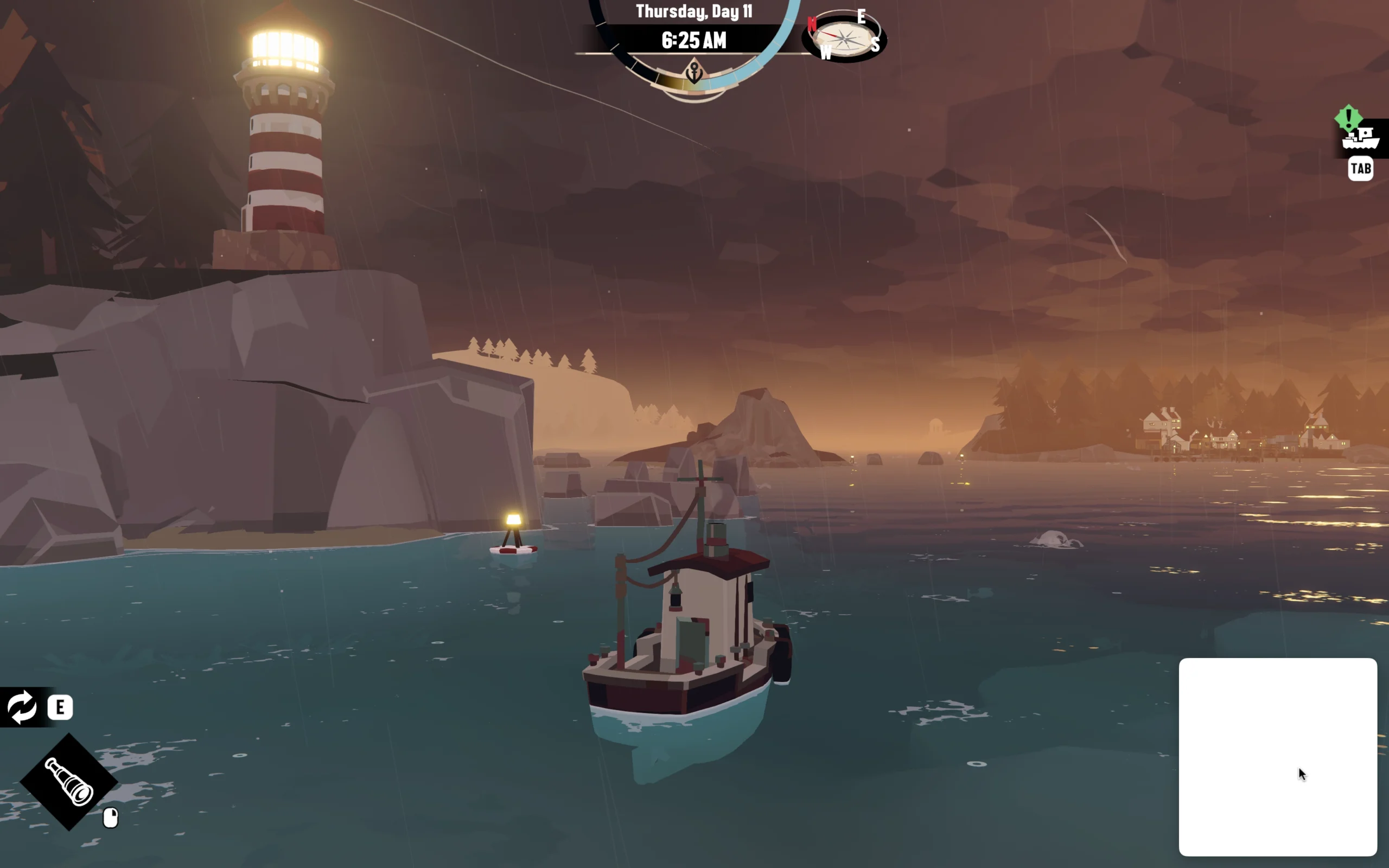
I was playing DREDGE on my Mac, a game that requires me to constantly move the mouse pointer to rotate the view and navigate around the world. Everything was fine until the pointer accidentally reached the bottom-right corner of the screen.
And it wasn’t just a one-time thing.
Basically, when the pointer reaches that corner, a small white box appears. If you accidentally — or intentionally — click it, macOS immediately interrupts what you’re doing and opens a small window where you can start jotting down a quick note.
Now imagine you’re trying to fish in the middle of the ocean or frantically navigating your way back to safety with your fishing boat (The Boat) headed toward somewhere safe (e.g., The Dock). Is a sudden gameplay interruption really what you want at that moment?
Obviously not — unless you have a very good reason.
I’m not going to get into why some games aren’t designed to effectively prevent this kind of system interaction when running fullscreen (and I say “some” because DREDGE definitely isn’t the only one), or why macOS doesn’t simply “respect” the fullscreen state. But when you keep running into the same situation, the first thing most people are probably going to think is: how do I make this thing go away?
That Little White Box Is Actually Quick Note
If you’ve never used this feature before, the little box that appears when you move the pointer into the bottom-right corner of the screen isn’t some random notification from the Notes app.
It’s Quick Note, a built-in macOS feature designed to let you quickly jot something down.
By default, the bottom-right corner of the screen is configured as a Hot Corner for Quick Note. Move the pointer into that corner, and macOS shows the Quick Note control; click it, and you can start writing immediately.

The idea is actually pretty good.
Say you’re working and suddenly remember an idea, want to save a link, need to jot down a phone number, or simply have something pop into your head that you don’t want to forget.
Instead of opening Notes, creating a new note, and figuring out where to put it, you can just move the pointer into a corner of the screen and start writing.
For people who work with content all day — writers, editors, developers, researchers, students, journalists, or really anyone who constantly needs to capture small pieces of information — this can genuinely be a very useful feature.
In fact, if you deliberately move the pointer quickly and firmly into the corner, that little white box becomes larger and more noticeable.
And that’s also why I don’t think Apple deserves too much criticism for this particular behavior.
The feature itself isn’t the problem.
The problem is context — who this is actually built for, and when it gets triggered.
Why Quick Note Can Be Annoying While Gaming
This became especially obvious to me while gaming on a Mac, whether I was playing DREDGE, Township, or Dota 2.
DREDGE is a pretty good example because this kind of game requires you to move the mouse a lot to rotate the camera, navigate, and interact with the world.
When you’re playing a game in fullscreen, you usually don’t think about the mouse pointer at the operating-system level. You’re just focused on the game.
So when the pointer accidentally reaches the bottom-right edge of the screen, macOS doesn’t know that you’re in the middle of a game.
As far as macOS is concerned, you’ve simply moved the pointer into a Hot Corner.
And Hot Corners are designed to respond to exactly that.
The problem becomes even more noticeable when you’re trying to interact with something close to the edge of the screen. The Quick Note control can appear at precisely the moment you’re trying to reach something else.
And this isn’t limited to games. A Hot Corner can also be triggered accidentally in fullscreen workflows or in apps where important controls sit close to the edge of the display.
So if you’ve ever had a moment of “WTF, why does this stupid Notes thing keep popping up?” — you’re definitely not the only one.
Okay, let’s get into fixing it.
How to Disable Quick Note on macOS
Fortunately, you don’t need to disable the Notes app, uninstall anything, or touch Terminal.
You just need to remove Quick Note from the Hot Corner. The option is built right into macOS System Settings.
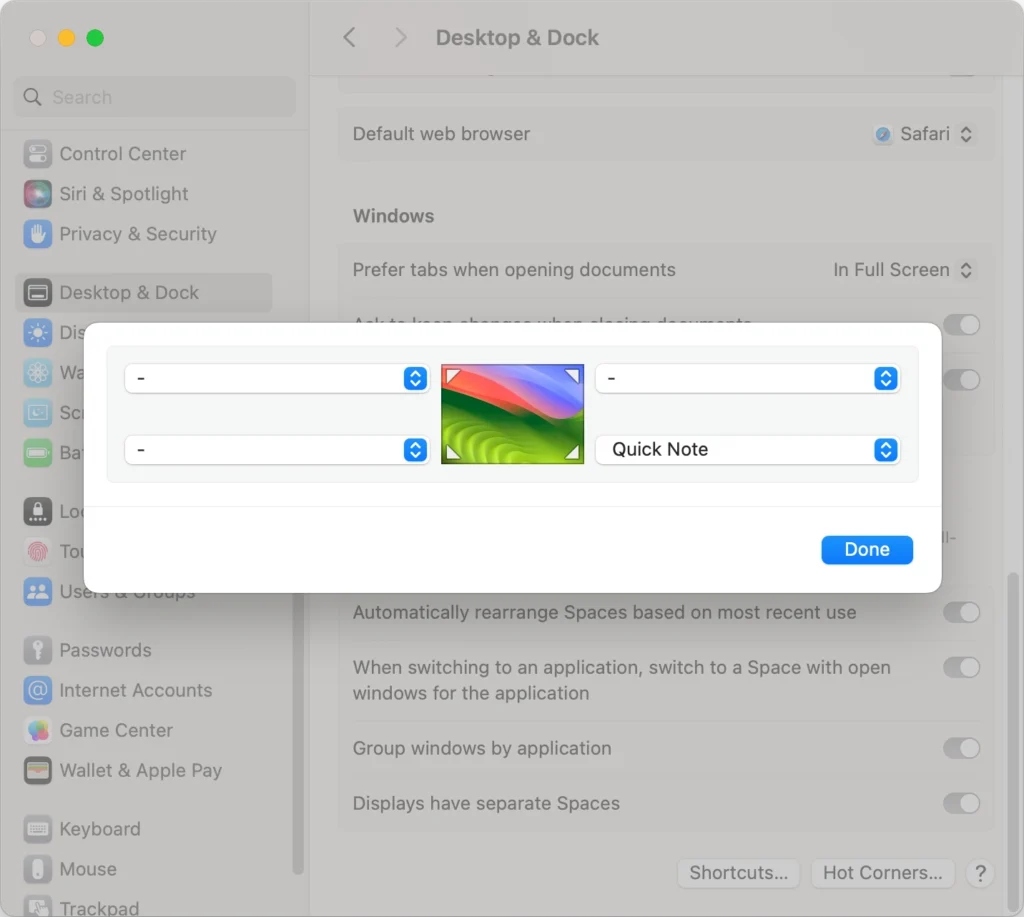
Assuming you’re using macOS Sonoma, here’s what to do:
- Open System Settings.
- Select Desktop & Dock.
- Scroll down and click Hot Corners…
- You’ll see a diagram representing the four corners of the screen.
- Select the bottom-right corner.
- Change Quick Note to – (None).
- Click Done.
That’s it.
The bottom-right corner of your screen is now just a normal corner again.
Apple’s current Mac documentation confirms that the bottom-right corner is the default Hot Corner for Quick Note, and that you can change or turn off the action from the Hot Corners settings.
However…
You Don’t Actually Have to Disable Hot Corners Completely
There’s another option that I think is worth knowing about.
You can keep Hot Corners enabled but make them require a modifier key.
When configuring a Hot Corner, macOS lets you hold Command, Shift, Option, or Control while selecting the action. The result is that the Hot Corner only activates when you move the pointer into that corner while holding the chosen key. Apple supports this directly as part of the Hot Corners configuration.
This is a nice compromise if you actually like Hot Corners.
For example, you could keep Quick Note in the bottom-right but require a modifier key to activate it. That way, accidentally moving the pointer into the corner during a game, while watching a video, or during normal desktop work won’t trigger it.
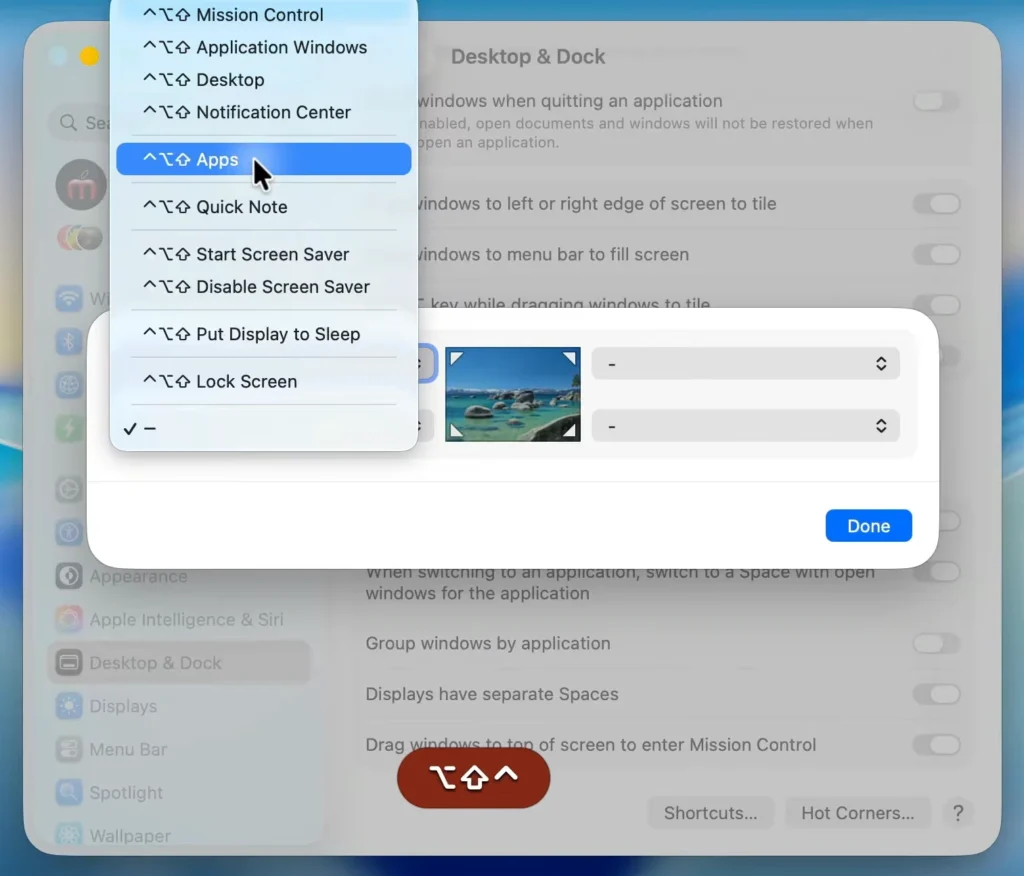
It’s also a trick that other Mac users have discovered and recommended specifically because ordinary Hot Corners can be too easy to trigger accidentally.
And it’s actually useful if you have other Hot Corners configured that you don’t want to lose.
Why Apple Made This the Default
Once I understood what was actually happening, I started looking at Quick Note a little differently.
It’s easy to see an intrusive popup and immediately think: “Who thought this was a good idea?”
But, to be fair, Quick Note does solve a real problem.
Apple describes it as a way to jot down ideas and add links without leaving whatever you’re currently doing. You can create a Quick Note from the Hot Corner, and you can also use the Fn/Globe + Q keyboard shortcut.
That makes a lot of sense for Apple’s core Mac audience.
If you’re writing an article and suddenly remember something you want to research later, Quick Note is useful.
If you’re reading a webpage and want to save a thought, it’s useful.
If you’re working on a project and need somewhere to dump a quick reminder, it’s useful.
For anyone producing, editing, researching, or organizing content all day, a near-frictionless way to capture a thought can become one of those small features you end up using dozens of times without even noticing.
And Quick Note has some genuinely nice integrations, too. For example, Safari can add a webpage or selected text straight into a Quick Note, which makes it genuinely handy for research-heavy work.
Seen that way, tucking it into a Hot Corner is actually a pretty clever design choice.
The Real Issue Isn’t Quick Note — It’s How Literal Hot Corners Are
The thing I find interesting here is that this isn’t really a case of Apple creating a “bad” feature.
It’s more of a mismatch between two workflows.
For productivity:
Move the pointer to a corner → Quick Note appears → write something down → keep working.
For gaming:
Move the pointer toward the edge of the screen → macOS treats that as a Hot Corner trigger → Quick Note appears → click → suddenly you’re no longer where you thought you were.
And that’s where things get annoying.
macOS has no idea that you’re currently fishing in DREDGE, editing a video, watching a movie, or trying to click a tiny fullscreen control.
It simply sees a pointer entering a Hot Corner.
That’s the important distinction.
A feature can be perfectly reasonable in isolation and still be inconvenient in a particular workflow.
So, Should You Disable It?
If you’re a heavy Notes user, writer, researcher, student, or content creator, I’d probably leave Quick Note enabled — or at least move it somewhere that doesn’t interfere with your workflow.
But if you regularly play fullscreen games, use applications where you frequently move the pointer toward the edges of the display, or simply don’t use Quick Note, there’s very little reason to put up with accidental triggers.
Personally, after the DREDGE incident, I decided that I don’t need Quick Note living in that particular corner.
I can always open Notes when I actually want to write something down.
And if I ever change my mind, it’s only a few clicks away in System Settings.
One Small macOS Setting, One Much Nicer Gaming Experience
Overall, this is one of those tiny Mac settings that takes just a few seconds to fix once you know where it lives. But for people who don’t even know Hot Corners exist, it’s easy to simply put up with the problem — or spend a surprisingly long time trying to figure out what’s causing it.
So if a mysterious white Notes box keeps appearing whenever your pointer reaches the bottom-right corner of your Mac’s screen, don’t immediately blame your mouse, your game, or the Notes app. And don’t get too annoyed, either. Most things have a reason for being there — even when the timing is terrible.
And as we’ve seen, Apple didn’t put Quick Note there at random.
Just go to:
– (None)
And you’re done.
Apple created Quick Note to make capturing ideas and information faster and more convenient. For many Mac users — especially people who spend a large part of their day working with content — it can genuinely be a useful feature.
But for everyone else, especially gamers, it can occasionally feel like macOS is trying to take notes about your frustration while you’re in the middle of a boss fight.
And honestly, that’s probably the one note I don’t need.
Enjoyed the article?